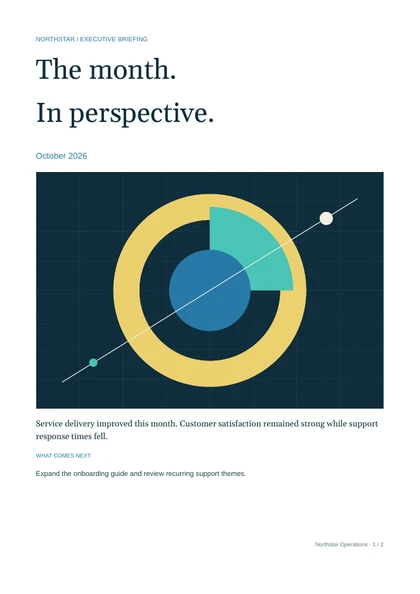
Monthly report pack
A summary and a detailed performance report assembled into one PDF.
Open 2-page PDF
Crystal Reports alternative for PDF generation
If your app already has the data, choose Bitavu for the PDFs it delivers. Edit and test templates in the browser, manage them in one workspace, and decide exactly which version your app uses.
14 days of Studio and API access. Payment card required.
Why choose Bitavu
A customer needs a wider description column. A teammate can find the report, make the change and test long descriptions in Studio. The customer portal can keep using its tested revision while the new layout is reviewed.
Templates, fonts and artwork live in one searchable workspace. Share a link to the saved version you’re reviewing.
Each save creates a version. Give it a title, leave a review comment or open an older snapshot.
Share headers, footers and sections. Reports keep their tested component versions until you choose to update them.
If a new publication requires a field your app never sent, affected latest-published requests return a compatibility error before rendering. If the layout needs a rollback, republish a previous saved version after checking it against your integrations. See both API request modes
Side by side
Bitavu brings authoring, testing and delivery setup together for apps that generate PDFs. Crystal Reports has more built-in tools for querying and analysing the data inside a report.
| Task | SAP Crystal Reports | Bitavu |
|---|---|---|
| Design & test | Visual Windows designer with drag-and-drop bands, grouping and parameters. | Visual editor, sample-data tests and integration setup in the same browser workspace. |
| Central management | The desktop designer works with .rpt files. Crystal Server and BusinessObjects BI Platform can centralize published reports and access. | A searchable template and media library, folders, workspace roles and links to exact saved versions. |
| Version & release | Standalone files follow your team’s file or source-control workflow. BusinessObjects BI Platform supports repository check-in and version history with configured Git or Subversion. | Immutable saved versions, titles, comments and publishing in Studio. Your app can pin a revision or follow compatible published updates. |
| Data & calculations | Direct database connections, formulas, filters, grouping, charts, cross-tabs and subreports. | Your app supplies JSON. Studio binds fields, repeats rows and handles display conditions and common calculations. Keep complex report logic upstream. |
| Reuse & permissions | Report bands and subreports, shared repository objects with BusinessObjects, and user, group, object and folder permissions with Crystal Server. | Versioned headers, footers, reusable sections and brand profiles. Workspace roles separate authoring from viewing, and API keys can be scoped to selected reports. |
| Runtime & delivery | PDF and other formats including Excel, with SDKs and interactive viewers available. Crystal Server adds scheduling and distribution. | Hosted PDF API called from your backend or automation. Your app or workflow schedules, stores and delivers the output. |
SAP features depend on the edition and deployment. Crystal Reports 2025 · Crystal Server · BI Platform version management · SAP user guide
Your app supplies the data. Designers and operations teammates want to own routine PDF layout updates, while developers control how those changes reach production.
Your reports depend on direct connections, complex formulas, cross-tabs, interactive drill-down, spreadsheet exports or SAP-managed scheduling and distribution.
Database-driven and scheduled reports
Say you send each customer a monthly service summary from SQL Server. Your scheduled backend job or n8n workflow runs the process. Studio owns the report layout, and Bitavu turns the prepared data into PDFs.
On the first of each month, start a scheduled job or an n8n workflow.
Run a parameterized query for the reporting period, calculate totals and build one JSON payload per customer.
Send each payload and its tested template revision to Bitavu’s PDF API.
Attach the PDF to an email or save it to a customer portal. Record delivery status and retry failures in the job.
If your app already fetches the data and sends the emails, the switch can be as small as replacing the PDF generation step. If Crystal Reports runs the queries and Crystal Server manages schedules or recipient rules, recreate those parts in your workflow before switching. See the Bitavu and n8n guide
Generated with Bitavu
Check the page breaks, repeating content and layout before rebuilding one of your own reports.
A summary and a detailed performance report assembled into one PDF.
Open 2-page PDF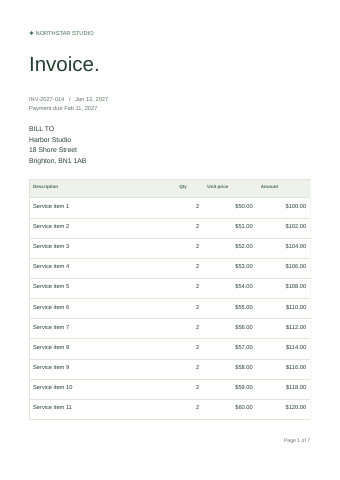
A repeating table with enough rows to test pagination in a real document.
Open 7-page PDF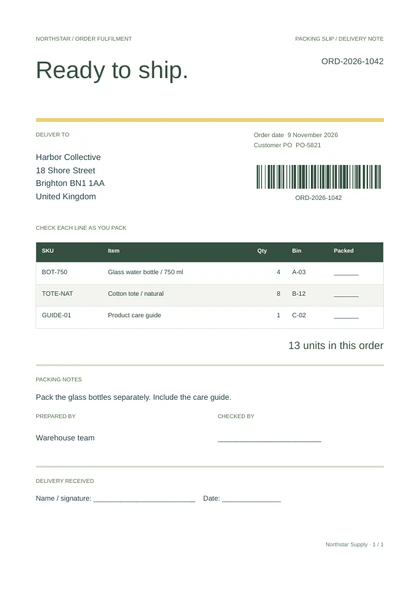
An operational document with item quantities, packing checks and a barcode.
Open PDF sample{{order.number}} in Properties.Once the template is connected, each order supplies its own barcode value. A teammate can move the barcode or change its size in Studio while the app keeps sending the same fields.
Migration guide
Rebuild the layout in Studio from a reference PDF and the input data. Bitavu has no direct .rpt import.
If you only need an export of the current report, follow SAP’s instructions for exporting a PDF.
Start with a customer report, invoice or inspection summary whose data you can already access. Keep the .rpt and export a reference PDF. Inventory the data sources, parameters, formulas, groups and subreports that affect the output.
Turn the fields you display into named properties and the detail records into arrays. Keep joins, filters, complex totals and grouping in your query or application. Pass the results to the template.
Bind the detail array to a repeating table, add page headers and footers, and try realistic examples. Include long labels, empty arrays, missing optional fields and enough rows for several pages. Compare totals, fonts and pagination to the reference PDF.
Send the template ID, saved revision and JSON from your backend to the PDF API. Run your Crystal and Bitavu reports on the same inputs. Switch one document over when the output meets your checks, then move the next one that fits.
Choose a starter, test your data, and generate a PDF from a version you can ship.
Start free trial14 days · Studio + API included · 1 seat. Payment card required. Your selected plan starts after the trial unless you cancel. How the trial works